How to create a chart from spreadsheet data in YakCharts
Your numbers already live in a spreadsheet, but the report needs a picture. Paste the rows into the Chart Editor and YakCharts draws the chart, ready to share as an image.
Before you start
- A YakCharts account (the free plan includes the Chart Editor)
Transcript
Turn rows from a spreadsheet into a chart image for a client report. Here's how in YakCharts.
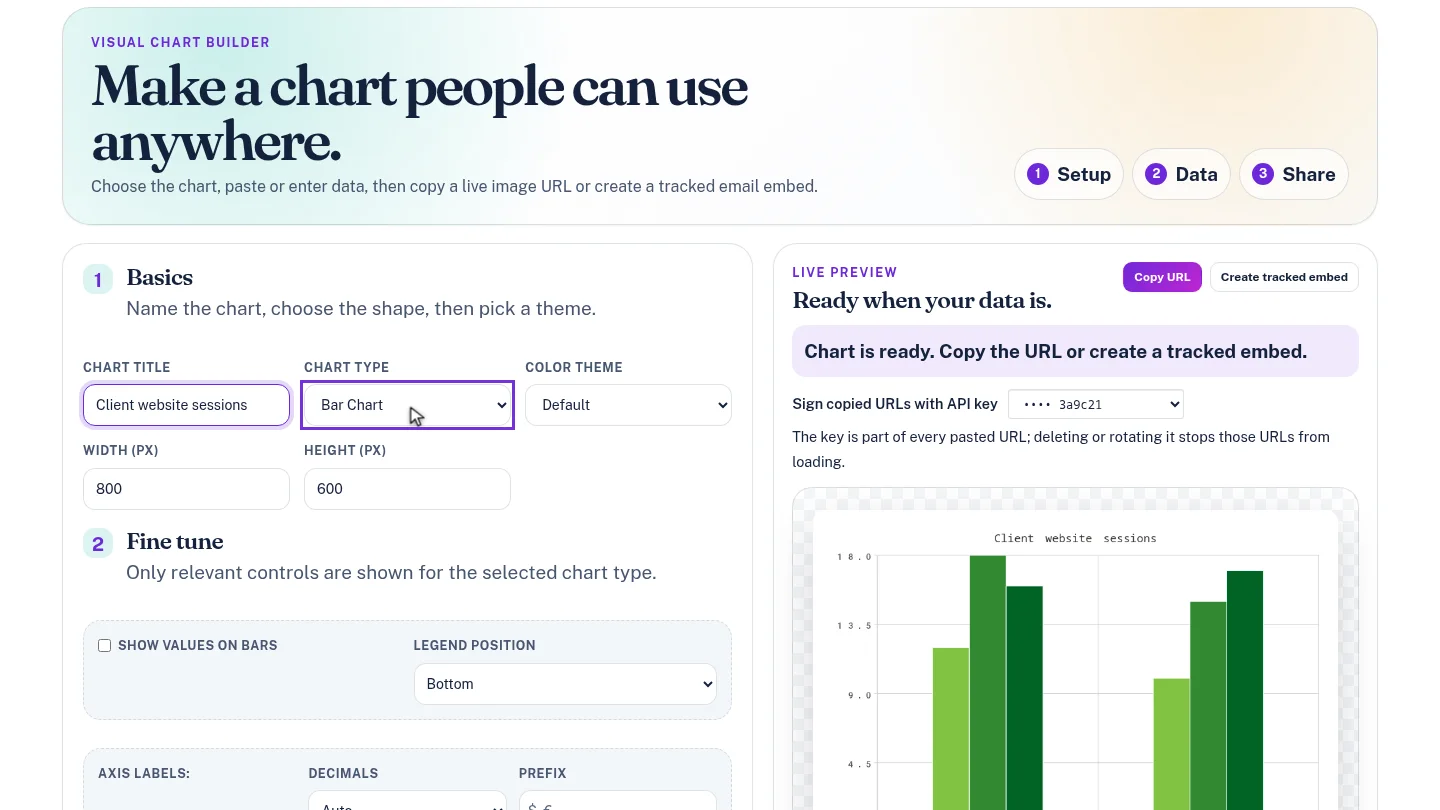
In the Chart Editor, give the chart a title, then set Chart Type to Bar Chart. The preview switches to sample bar data.
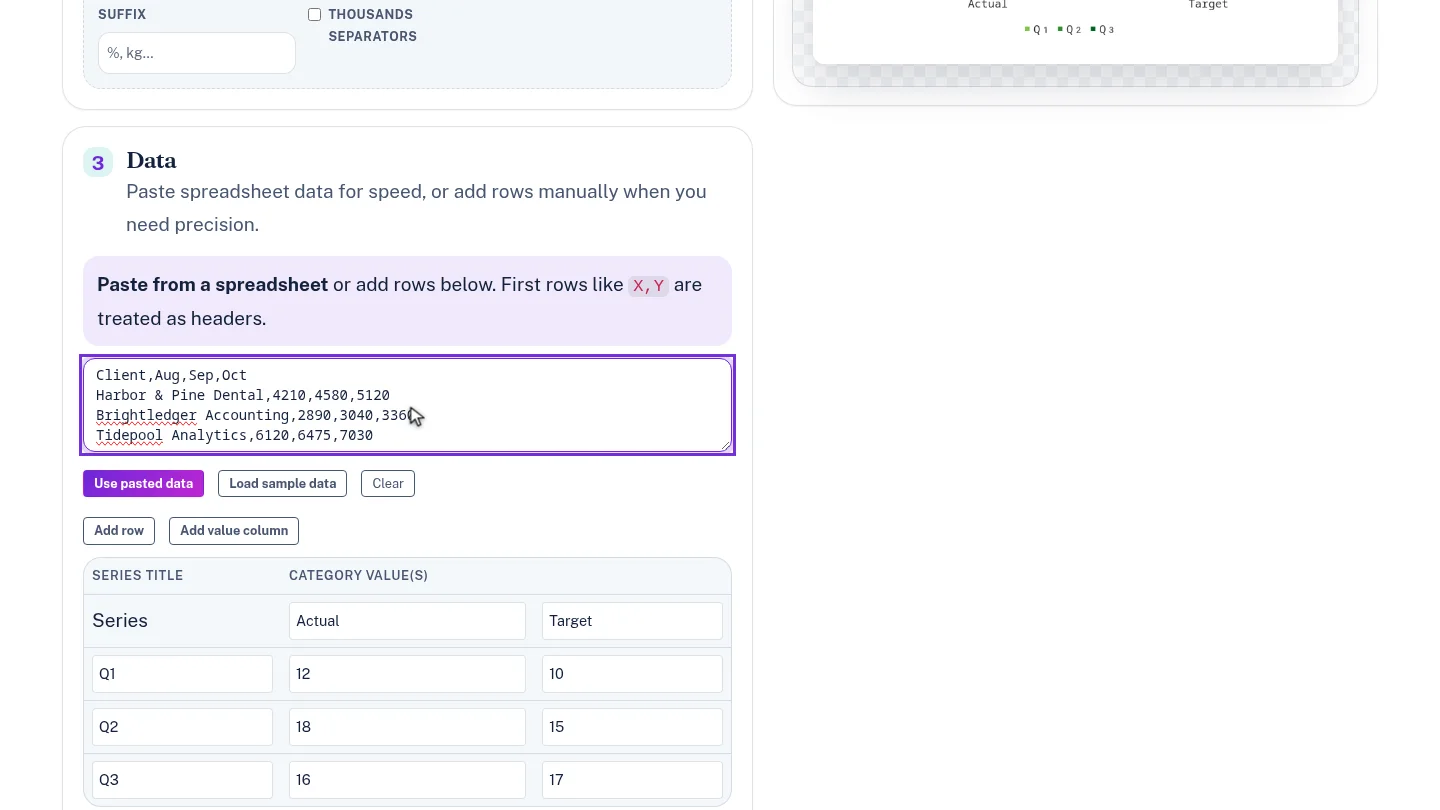
Copy the rows from your spreadsheet and paste them into the data box. The first row holds the month labels, and each row after it becomes one client's bars.
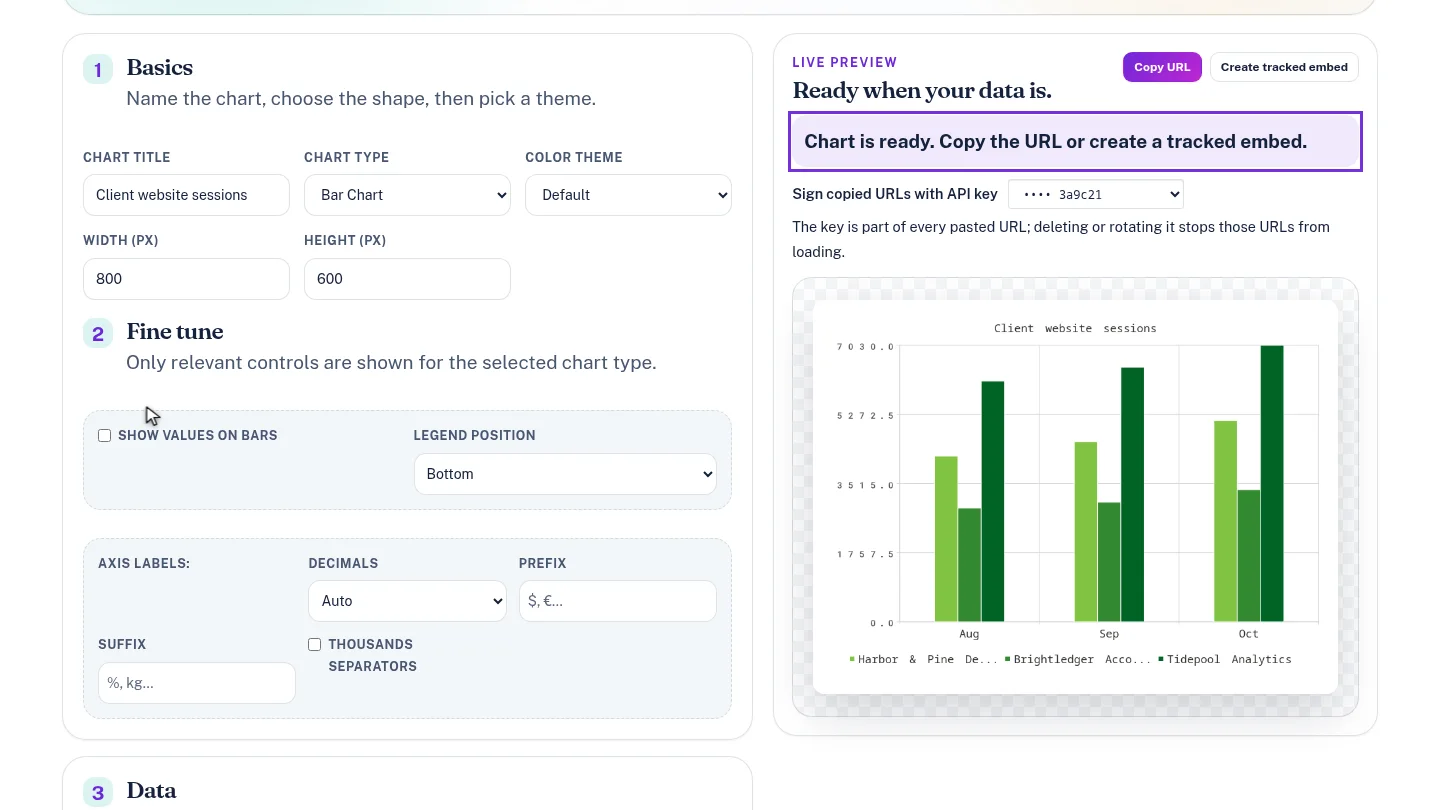
Select Use pasted data. YakCharts reports Imported 3 rows, and the preview draws all three clients across August to October.
Steps
Name the chart and pick a type ▶ 0:07
In Chart Editor, enter a Chart Title, then set Chart Type to Bar Chart.
Paste your rows ▶ 0:16
Copy the cells from your spreadsheet, including the header row, and paste them into the box under Paste from a spreadsheet.
Import the rows ▶ 0:27
Select Use pasted data. The status shows Imported 3 rows. and the live preview redraws.
Next steps
Updated 2026-10-26
csv to chart paste spreadsheet bar chart maker excel chart image tsv