How to invite a teammate to YakCharts
Charts for client reports are rarely one person's job. Invite a teammate by email so they can build and share charts on the same account and plan.
Before you start
- Owner or admin role
- A paid plan or an active free trial with a free user seat
Transcript
Add a teammate to your YakCharts account by email.
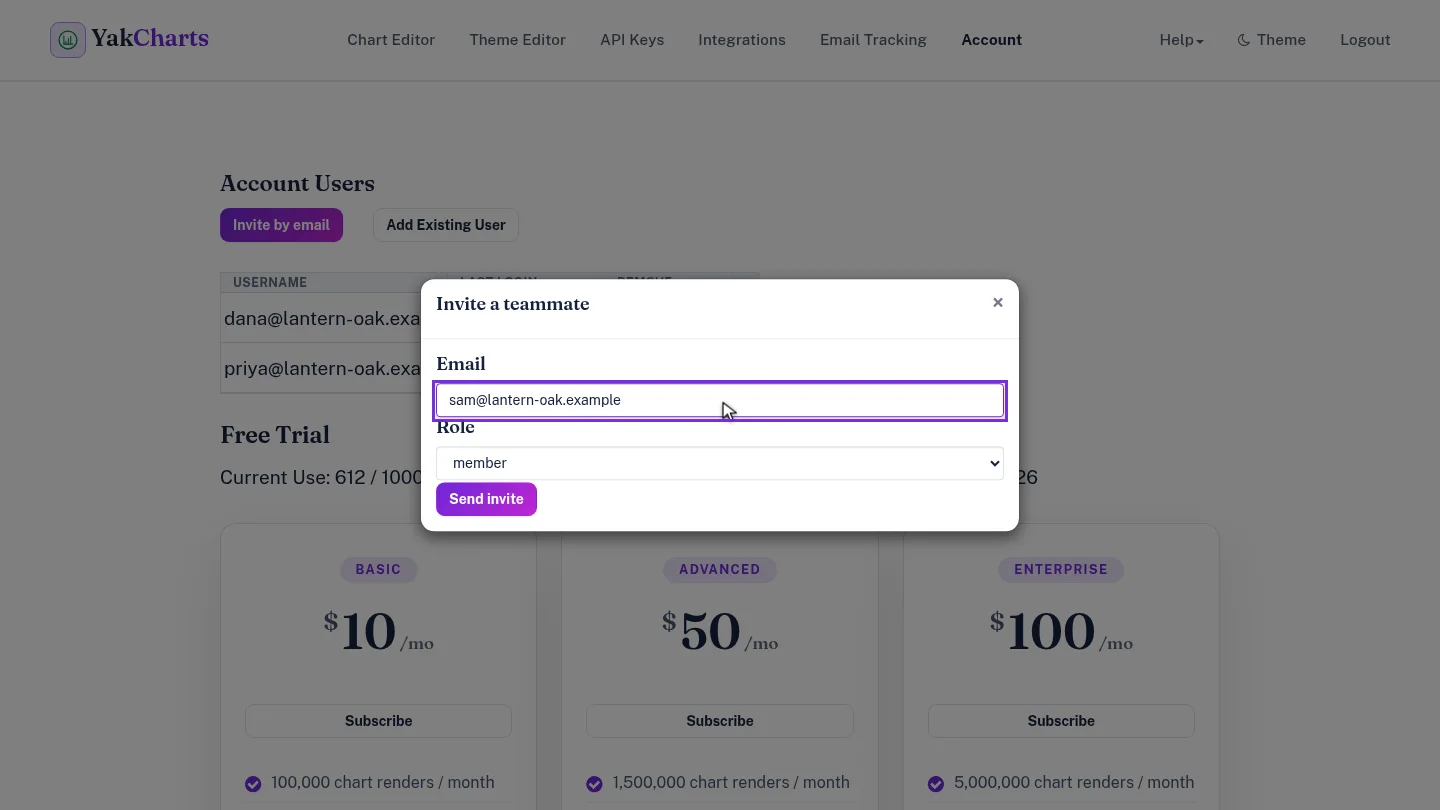
On the Account page, under Account Users, select Invite by email, and enter your teammate's address.
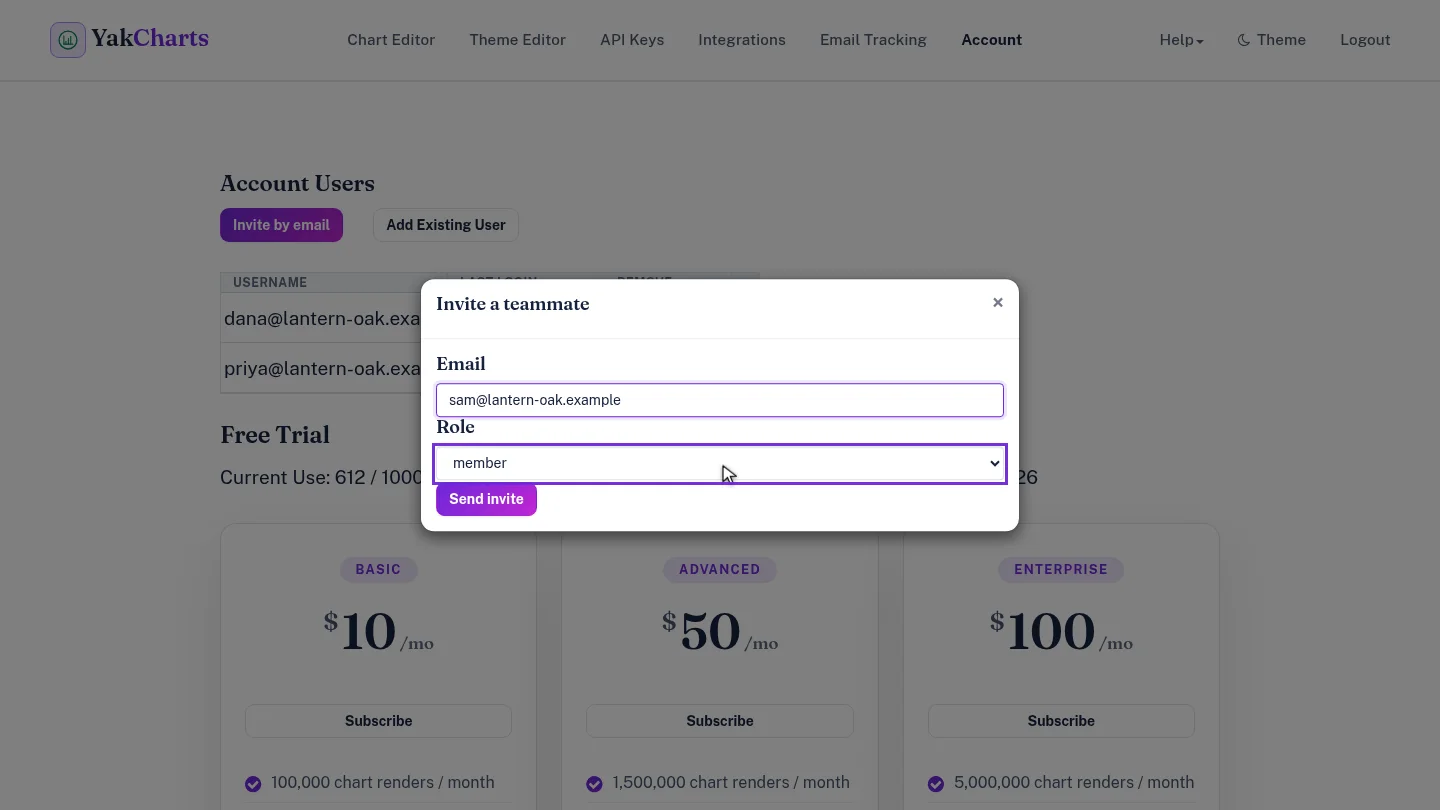
Choose a Role. Member is selected by default; admins can also invite and remove people.
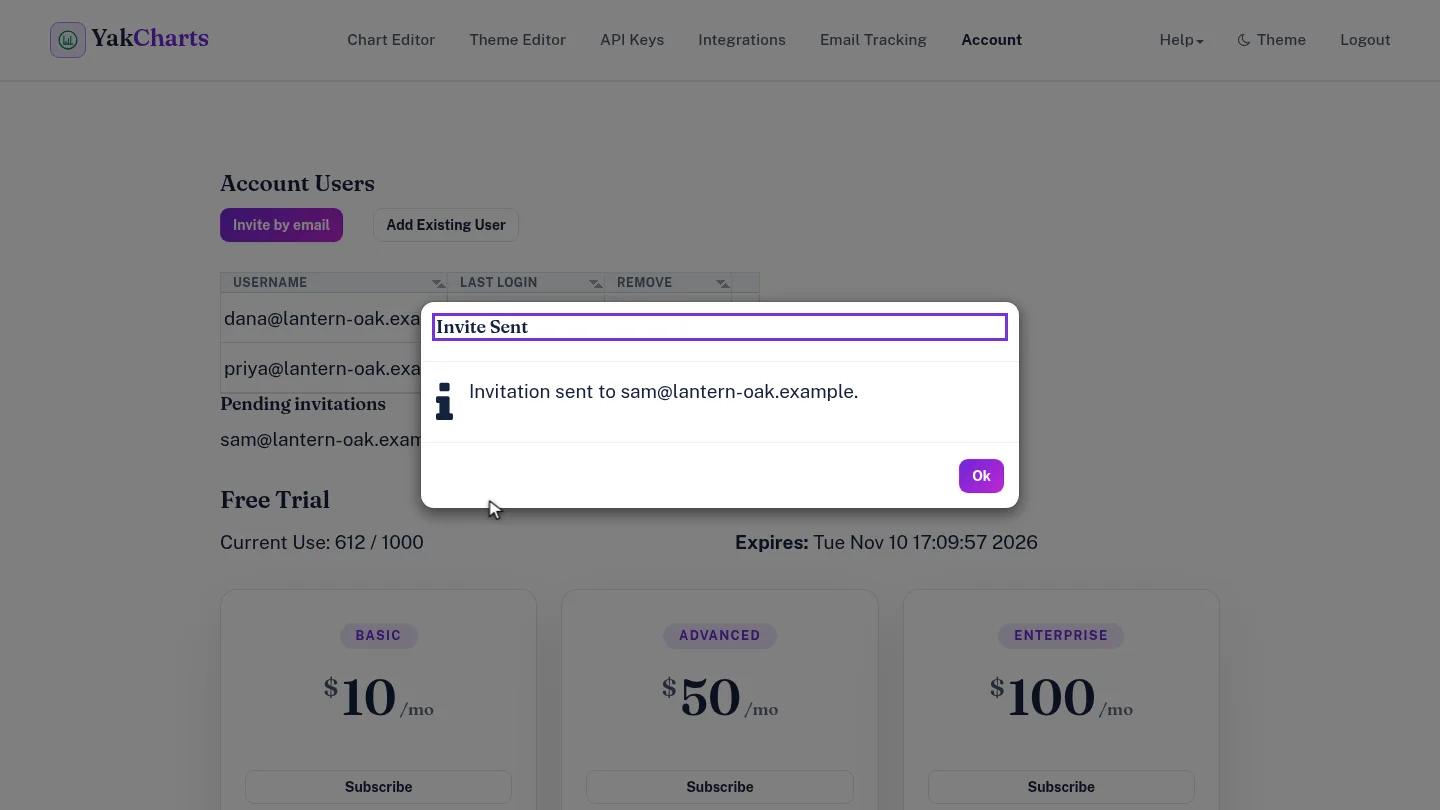
Select Send invite. YakCharts confirms the invitation was sent to that address.
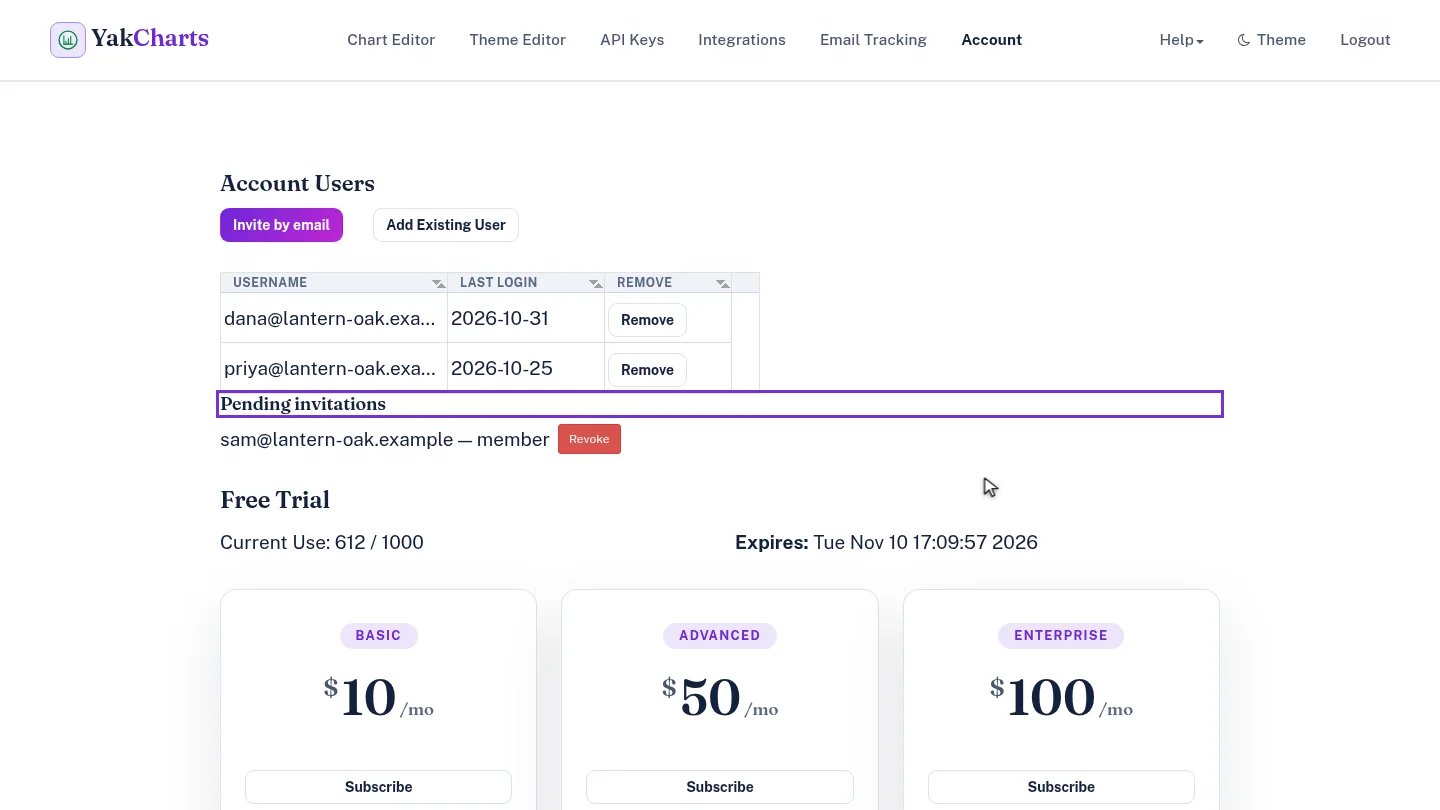
Select Ok. The invitation waits under Pending invitations, and Revoke cancels it if you change your mind.
Steps
Enter their email ▶ 0:04
Select Account. Under Account Users, select Invite by email, then enter the Email address.
Choose a role ▶ 0:11
For Role, keep member or choose admin.
Send the invite ▶ 0:18
Select Send invite. A message confirms Invitation sent to the address.
Check pending invitations ▶ 0:24
Select Ok. The invite appears under Pending invitations; select Revoke to cancel it.
Next steps
Updated 2026-10-26
add user team member invite by email share account