How to save a reusable brand theme in YakCharts
Every client report should look like it came from the same studio. Save your colours, fonts and title size once as a theme, then pick it for any chart instead of restyling each one.
Before you start
- A paid plan or an active free trial
Transcript
Save your studio's chart style once and reuse it on every client report.
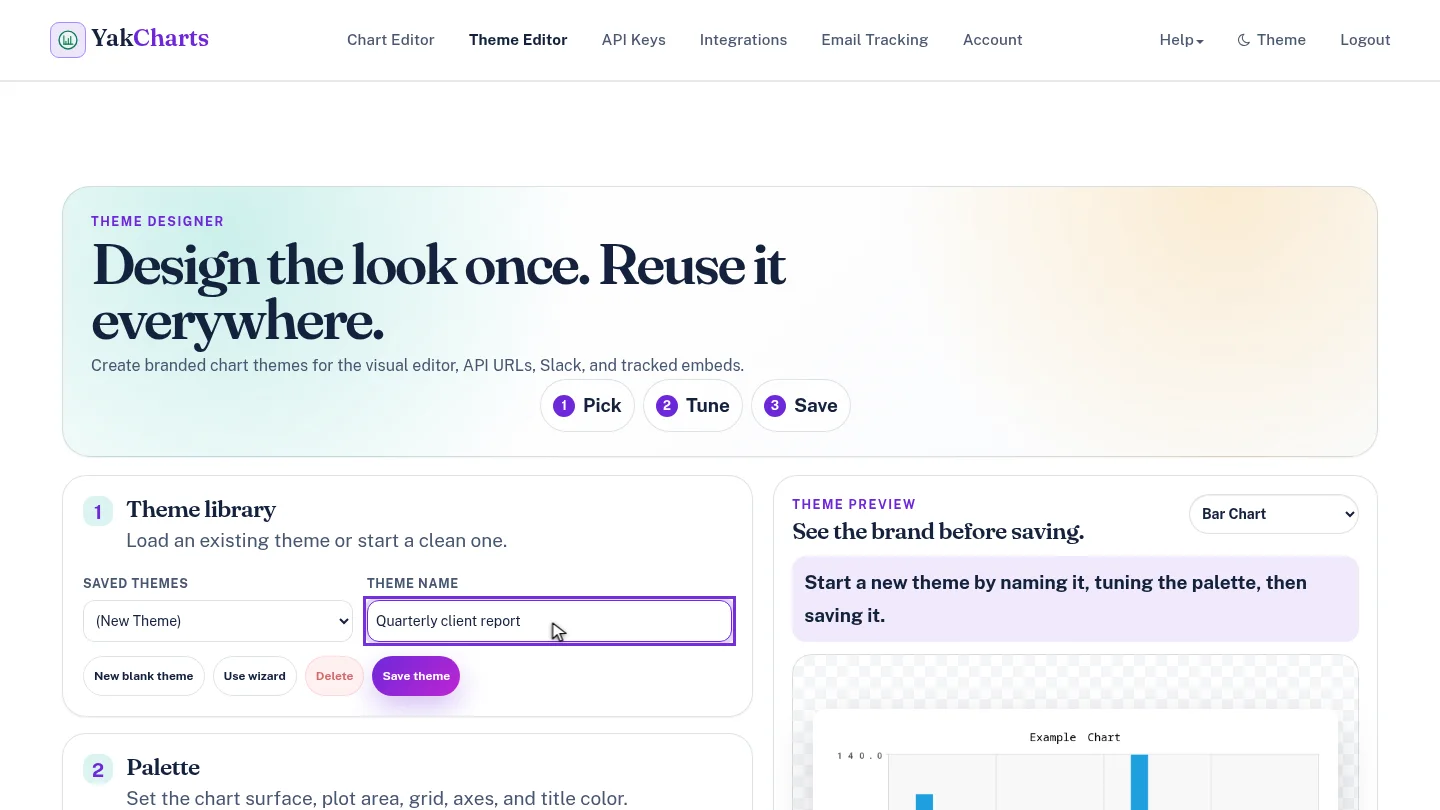
In the Theme Editor, give the new theme a name your team will recognise. You can set colours under Palette, or select Use wizard to generate a matching set.
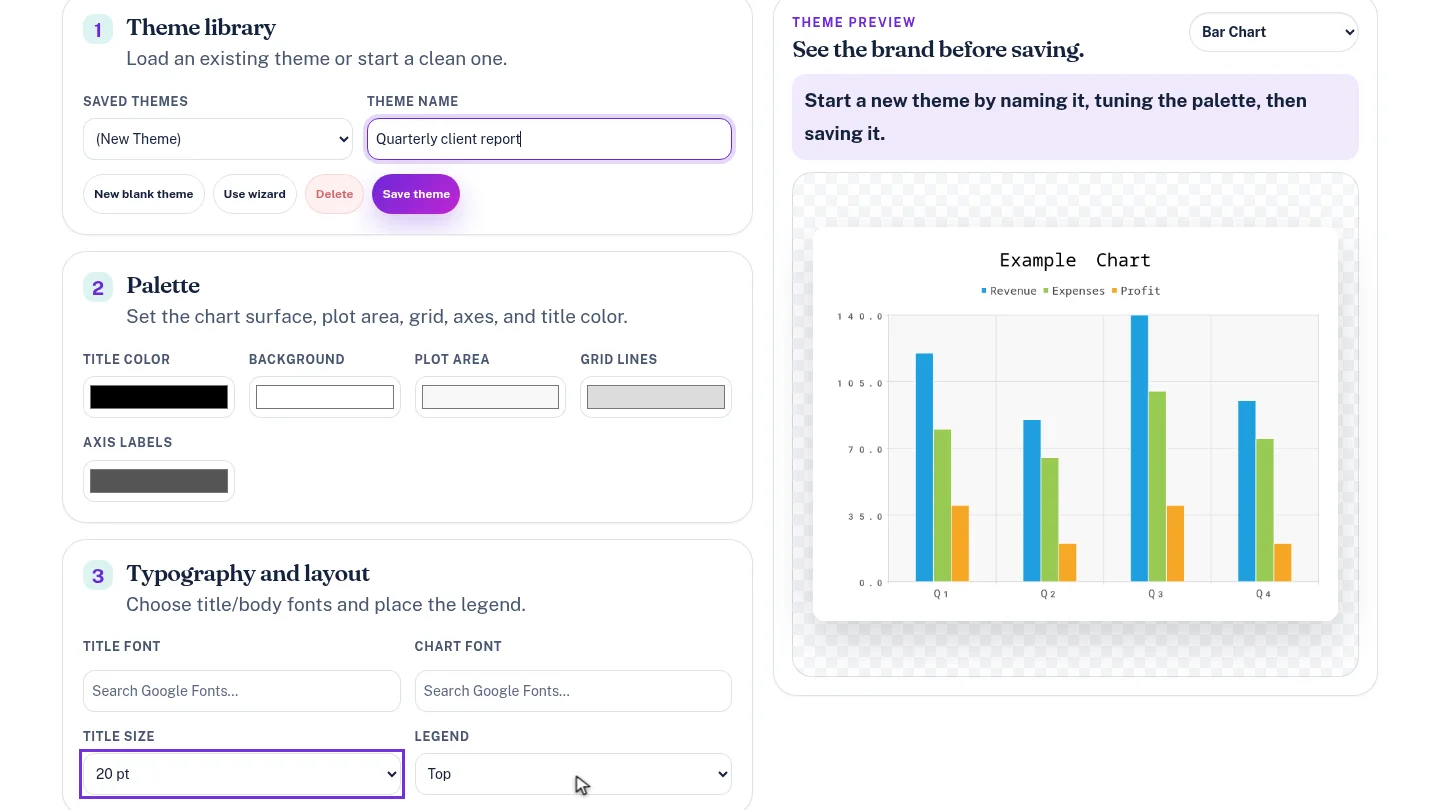
Set Title size to twenty point, and move the Legend to the top. The theme preview updates as you go.
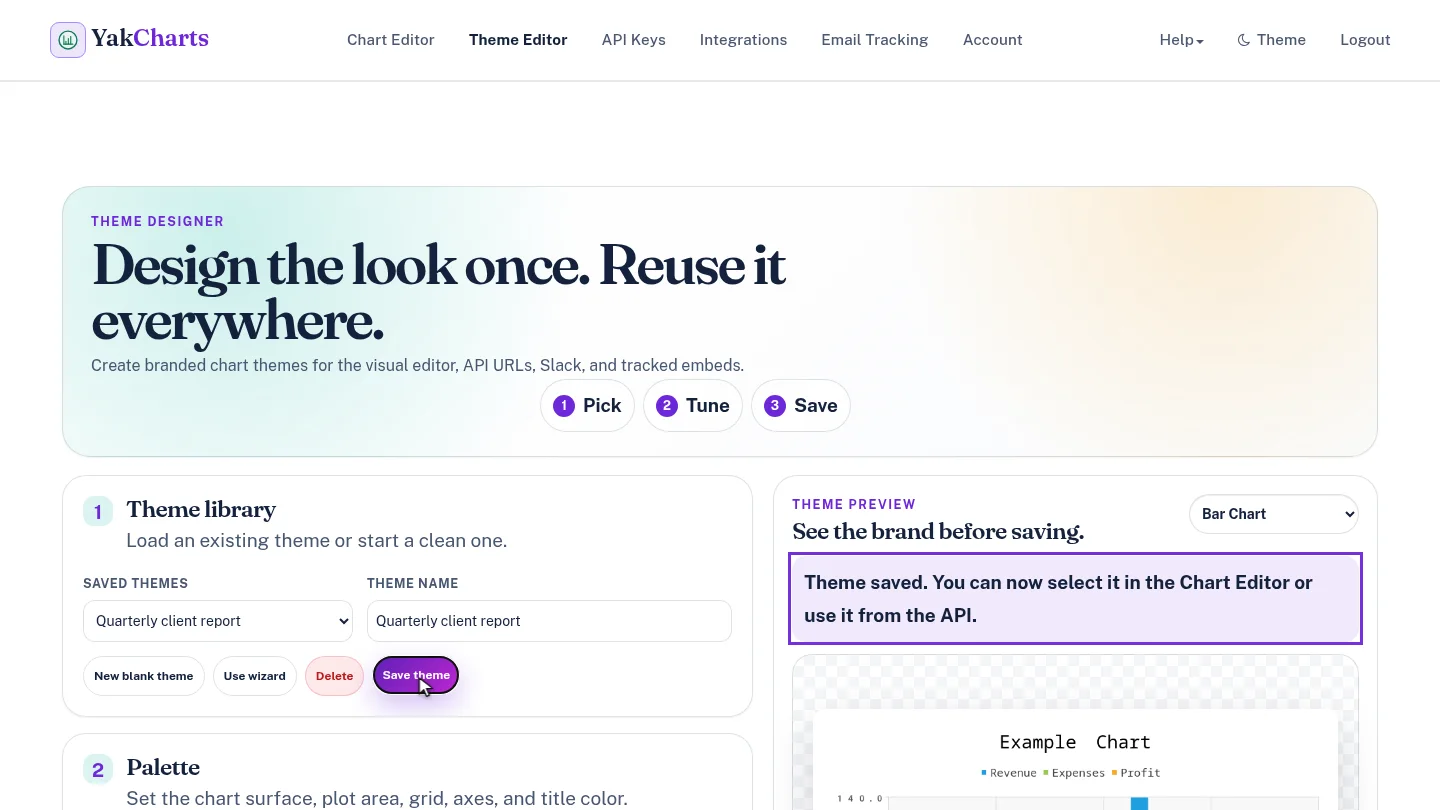
Select Save theme. YakCharts confirms the theme is saved, and it's ready to pick in the Chart Editor or use from the API.
Steps
Name the theme ▶ 0:06
In Theme Editor, enter a Theme name. Optional: set colours under Palette, or select Use wizard to generate them.
Set type and layout ▶ 0:16
Under Typography and layout, set Title size to 20 pt and Legend to Top.
Save it ▶ 0:24
Select Save theme. The status confirms the theme was saved.
Next steps
Updated 2026-10-26
chart theme brand colors custom palette chart style