How to create a tracked email chart in YakCharts
When you email a monthly report, you want to know whether clients looked at it. A tracked embed saves the chart under its own image URL and records every time that image loads.
Before you start
- A paid plan or an active free trial
Transcript
Email a chart and find out which clients opened it.
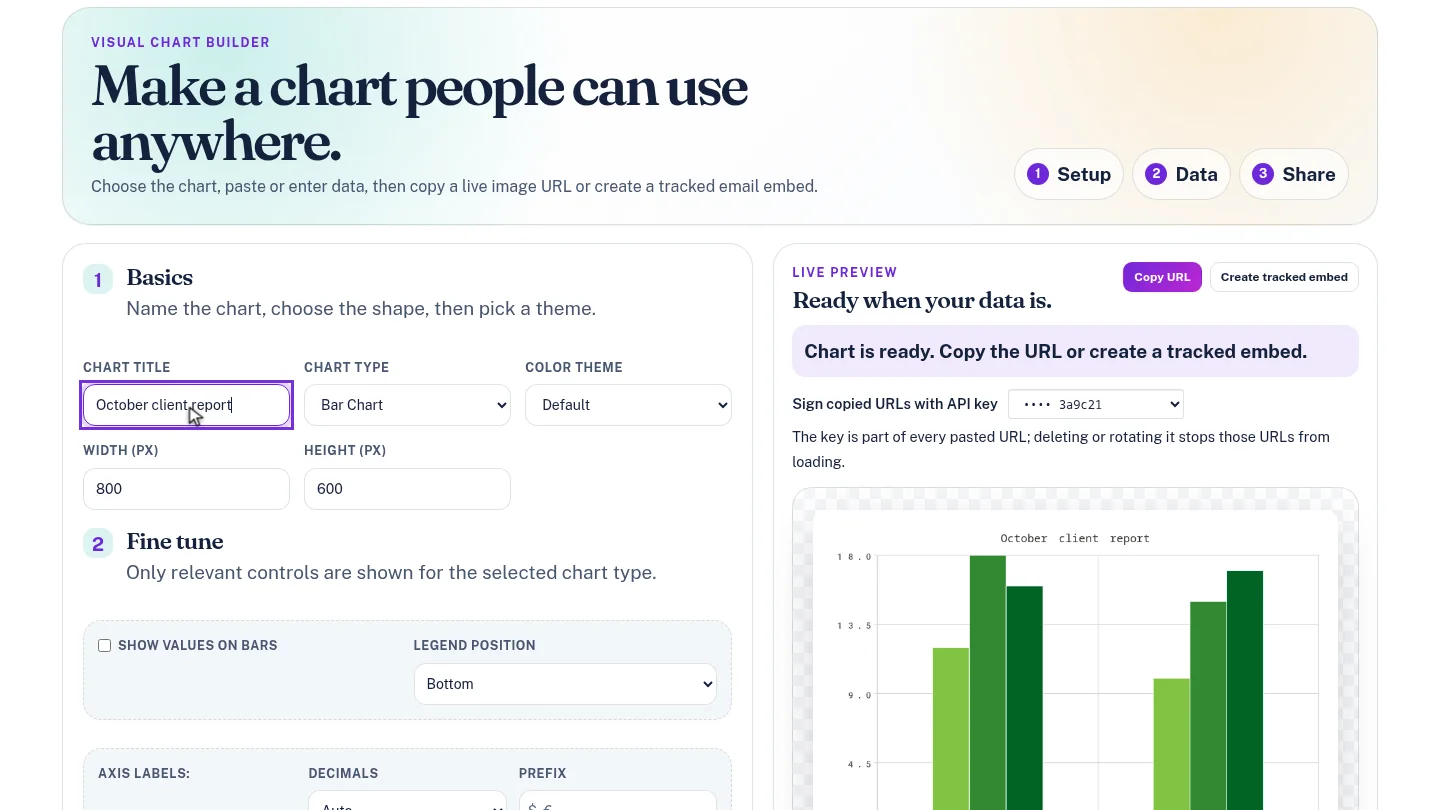
Build the chart as usual. Here it's a bar chart titled October client report.
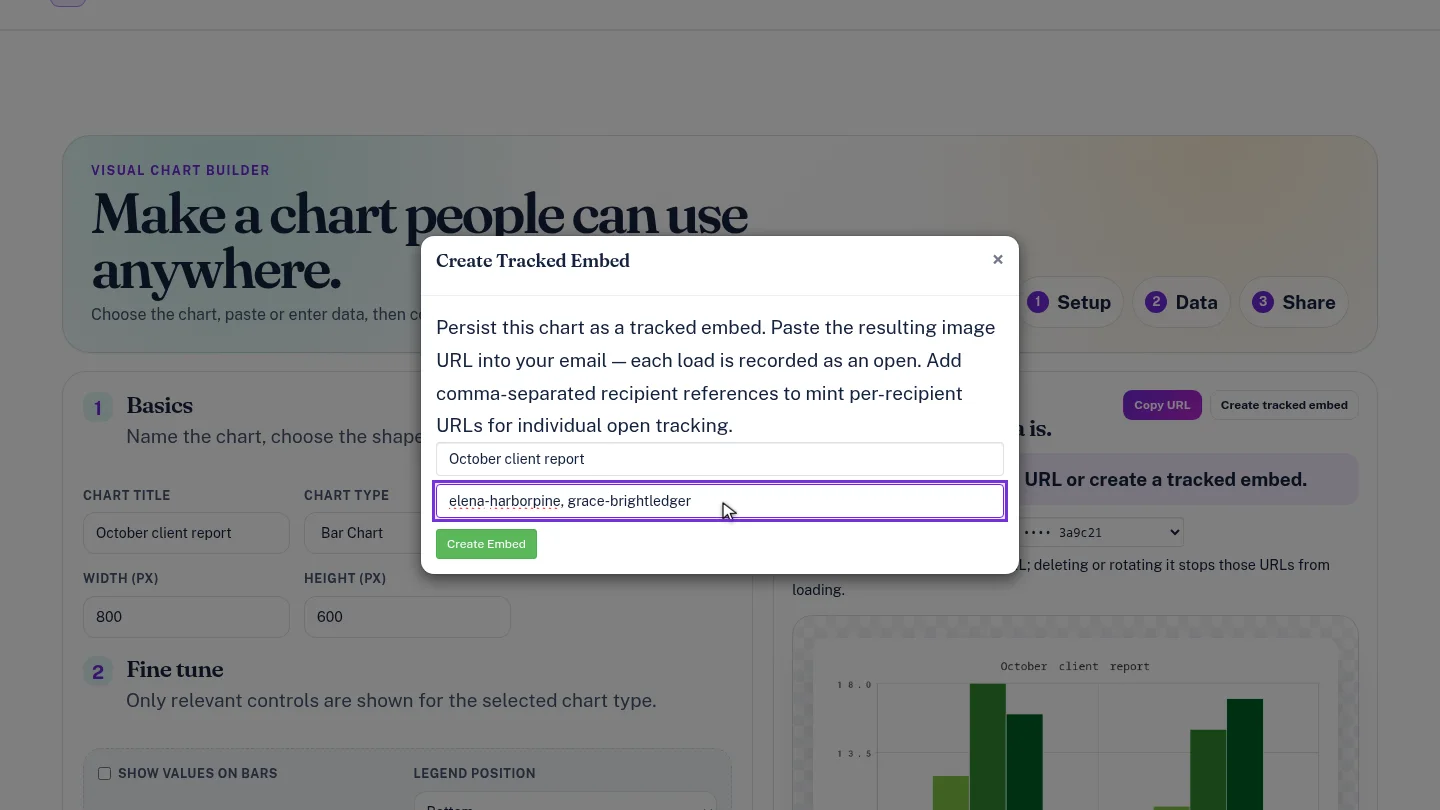
Select Create tracked embed. The embed name comes from the chart title. Add a reference for each recipient, separated by commas, such as their ID in your email tool.
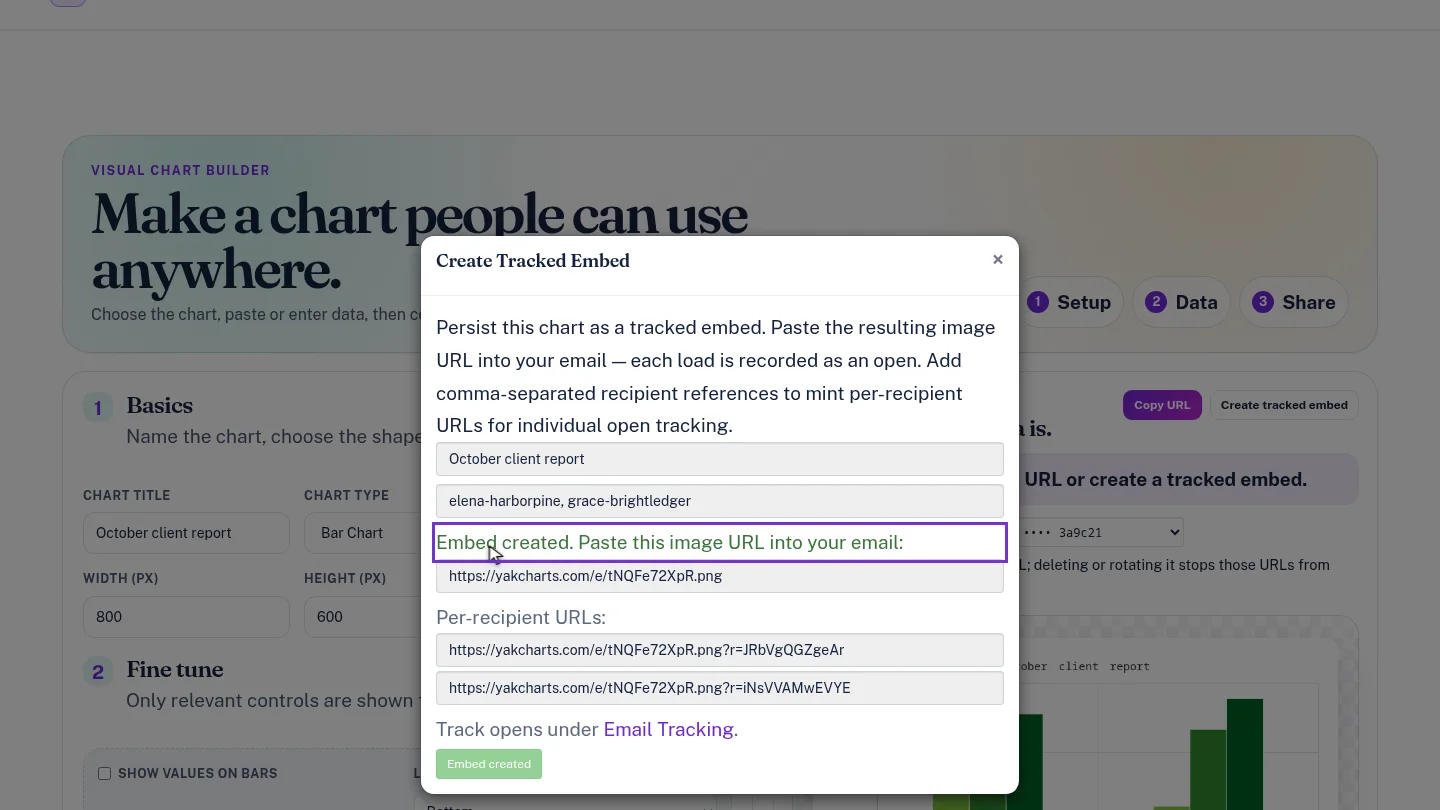
Select Create Embed. YakCharts shows the image URL to paste into your email, plus a separate URL for each recipient.
Steps
Build the chart ▶ 0:04
In Chart Editor, set Chart Type and a Chart Title, and add your data.
Add recipient references ▶ 0:10
Select Create tracked embed. Check the embed name, then enter recipient references separated by commas. Optional: leave it empty for one shared URL.
Create the embed ▶ 0:22
Select Create Embed. Copy the image URL, or a per-recipient URL, into your email.
Next steps
Updated 2026-10-26
email open tracking tracking pixel newsletter chart per-recipient tracking