How to format a chart for a report in YakCharts
A chart in a PDF or an email can't be hovered, so it has to carry its own numbers and fit the page. Set the palette, the image size and value labels before you share it.
Before you start
- A YakCharts account (the free plan includes the Chart Editor)
Transcript
Make a chart readable on paper: bolder colours, the right size, and the numbers on the bars.
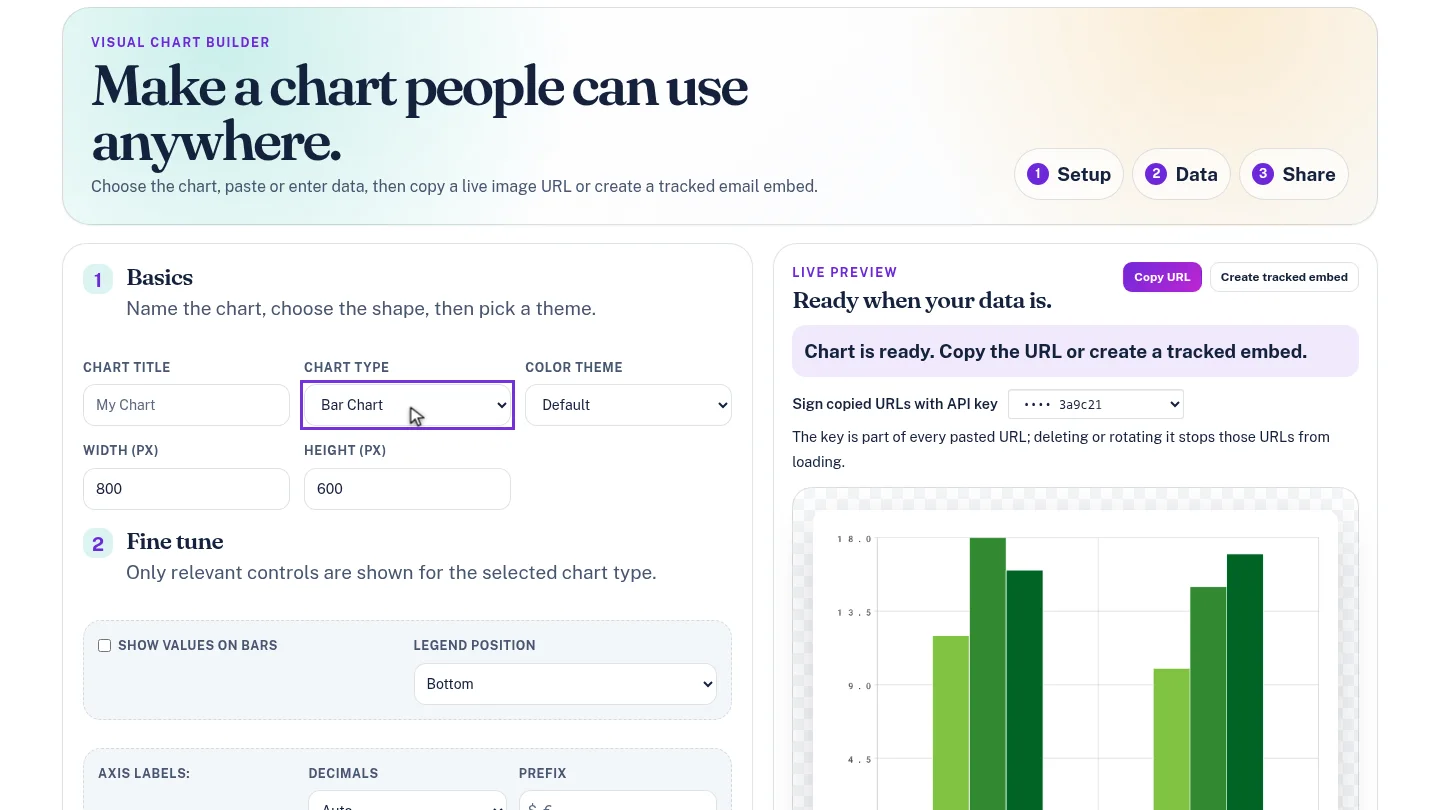
Set Chart Type to Bar Chart. YakCharts loads sample data, so you can watch every change in the preview.
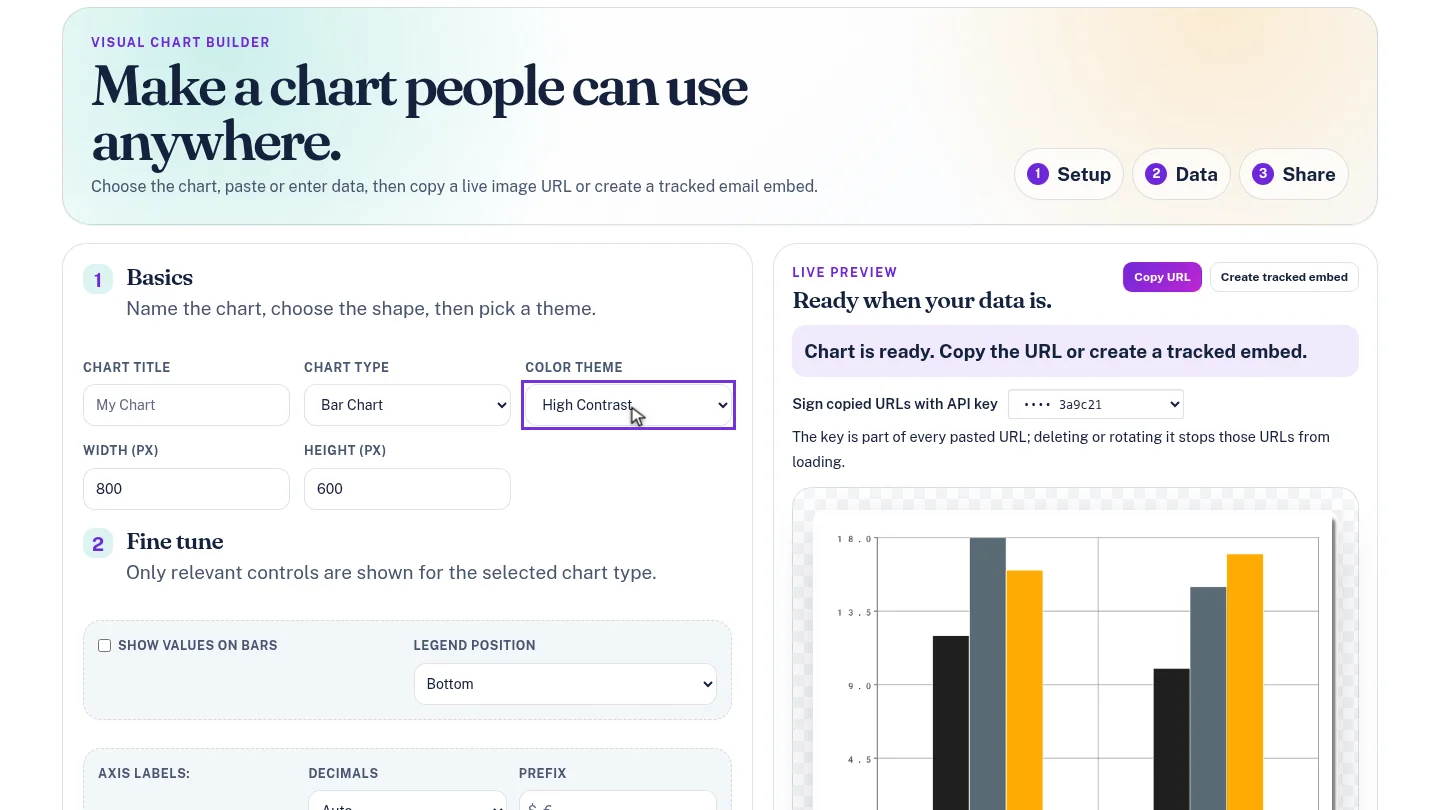
Under Color Theme, choose High Contrast for stronger colours that stay distinct on a printed page.
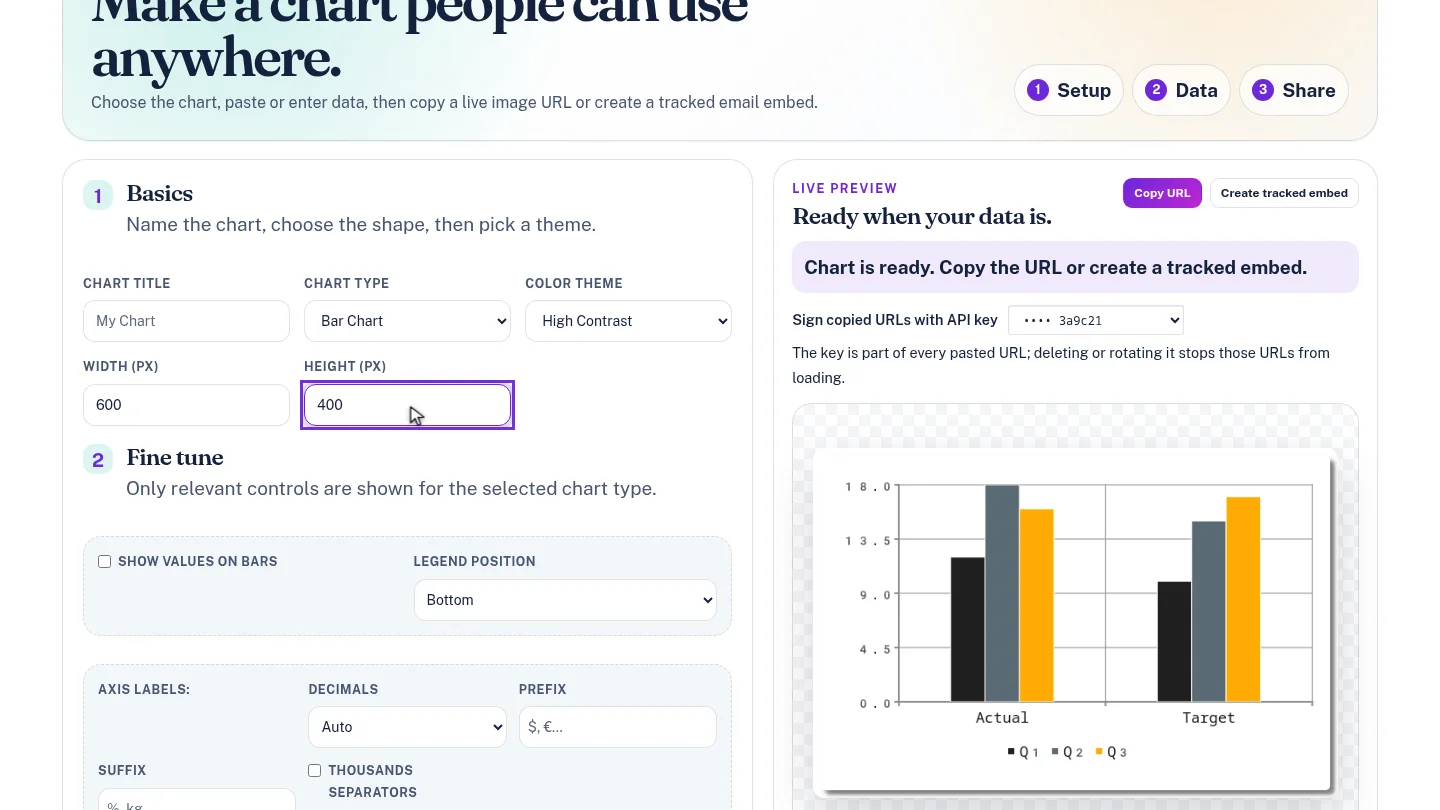
Set the width to six hundred and the height to four hundred pixels, so the image fits a typical email or a report column.
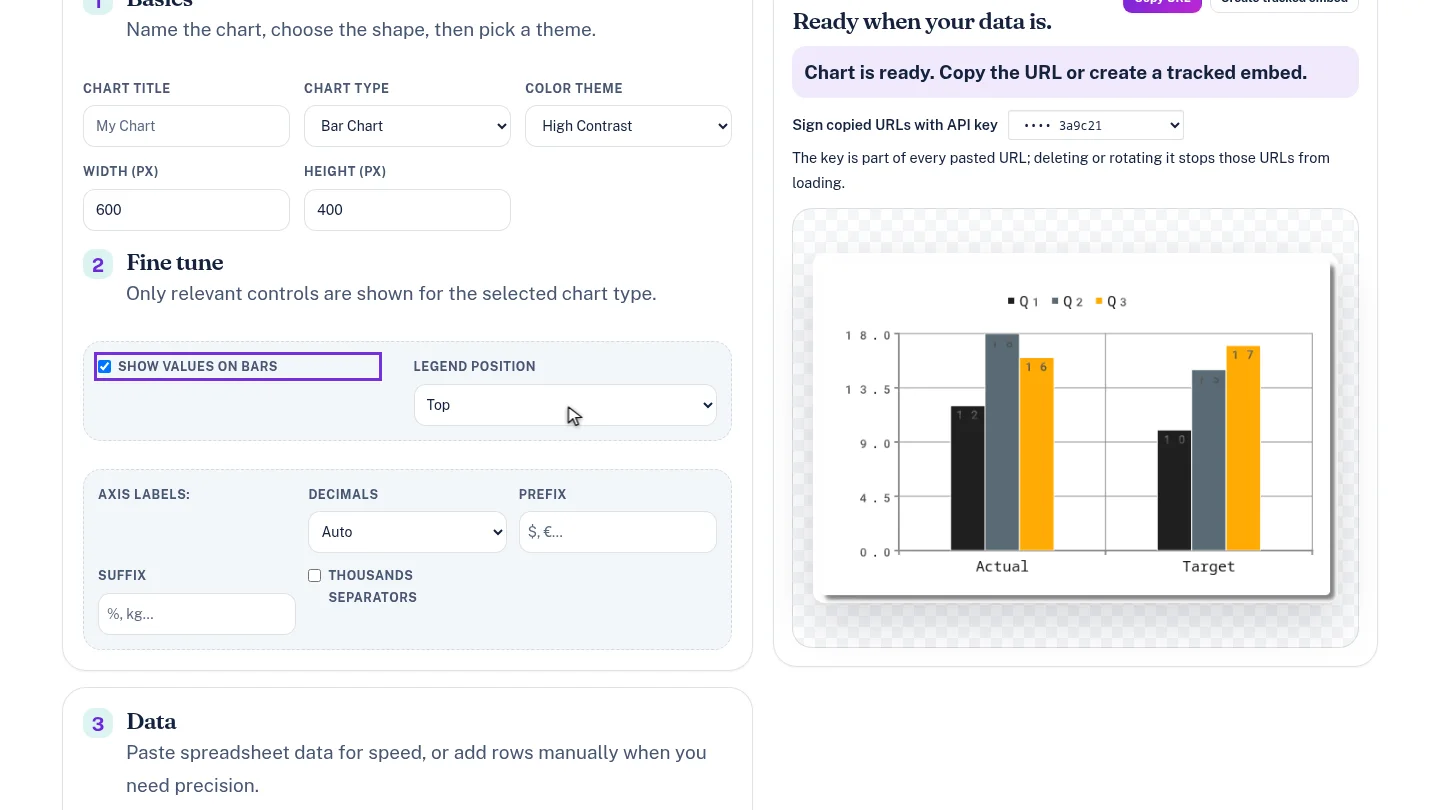
Turn on Show Values on Bars so readers see each number without hovering, then set Legend Position to Top.
Steps
Start from a bar chart ▶ 0:07
In Chart Editor, set Chart Type to Bar Chart.
Choose a palette ▶ 0:15
For Color Theme, choose High Contrast.
Set the image size ▶ 0:22
Enter 600 for Width (px) and 400 for Height (px).
Add value labels ▶ 0:31
Select Show Values on Bars, then set Legend Position to Top.
Next steps
Updated 2026-10-26
chart size chart colors data labels legend position chart width height